Getting Started with Homekit [Beginners Guide]
Updated guideDocumentation reviewed . Older model; not a current buying recommendation.
Current guidance
Apple Home can control compatible HomeKit accessories and supported Matter devices. Follow Apple’s current software and home-hub requirements rather than the original iOS 8/iPad advice. HomePod or compatible Apple TV can provide a home hub; Matter-over-Thread accessories need a suitable Thread-enabled hub or supported border-router arrangement. iPad is not a home hub on the current Home architecture. Start with one light or plug, then test remote access, household permissions and automations before expanding.
Read the current category guide →
Sources and scope
Reviewed against documentation on October 3, 2026. No new hands-on testing.
Original article · historical archive
Written at the original publication date. Product features, prices, support and integrations may have changed. The guidance above takes precedence; historical claims have not all been reverified.
So you want to take your home to the next level with Siri and HomeKit enabled devices.
Using HomeKit devices with your Apple products couldn’t be easier.
Check out our huge list of HomeKit compatible devices
All HomeKit accessories are added and controlled via the Home app on iOS. The Home app is a default on all iOS devices running iOS 8 or later.
Reasons to Use HomeKit
More HomeKit devices are added every year and at this point you can have security cameras, thermostats, lighting, and more all in your HomeKit. The one massive benefit is the ability to use Siri and the ease of use in iOS. Once you add devices to your home they will show up in your control center to easily turn off/on things or even view your camera feeds.
Where to Start: Lighting
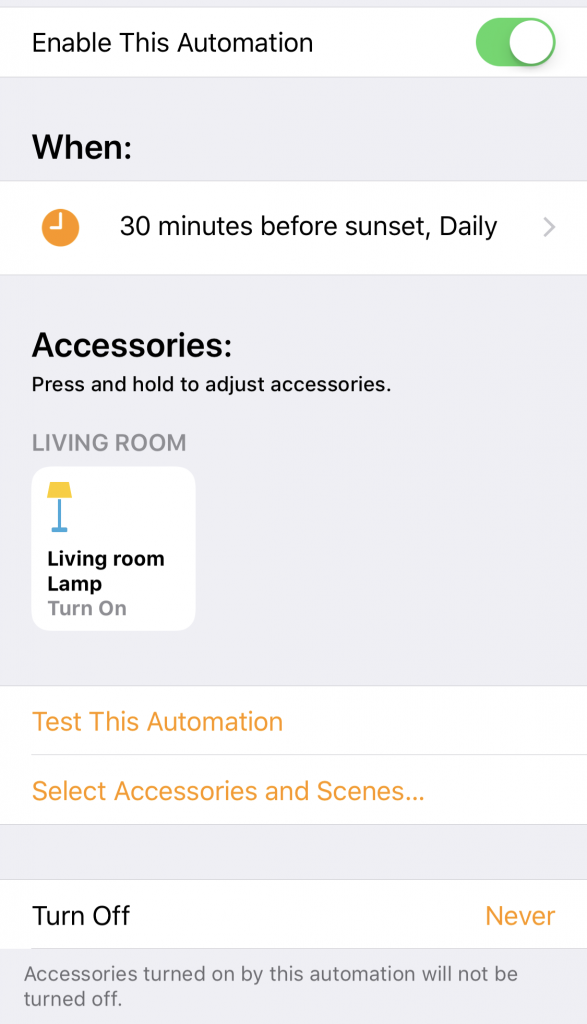
If you don’t have any HomeKit devices we recommend starting with a Philips Hue light bulb.
It’s great to be able to tell Siri to turn your living room lights off and on.
Additionally we recommend automating your lights to turn on when it gets dark out. Using HomeKit automation you can have your lights turn on 30 minutes before sunset and turn off 30 minutes after sunrise for example. This is perfect if you have a pet at home or just want to walk into a lit home after work.
When expanding to additional products just be on the lookout for devices with the “works with Apple HomeKit” badge as seen below.
HomeKit Hubs
If you want the ability to automate HomeKit devices you’ll need a HomeKit Hub. Luckily most people already have one, an Apple TV, HomePod, and even a plugged in iPad work as a HomeKit hub.
The hubs will automatically set themselves up so if you have the automation tab in your home app that means it’s setup correctly.