Blocks Ads with Your Router Using an Ad-blocking DNS Server
Updated guideDocumentation reviewed .
Current guidance
DNS filtering blocks requests to selected domain names; it cannot reliably remove every in-app or video advertisement, particularly ads served from the same domains as content. The original resolver IP addresses should not be copied from this archive. Take the current addresses directly from your chosen provider’s documentation, save your previous settings and test one device before changing the router. Custom app DNS or encrypted DNS can bypass router settings. A filtering service is not a substitute for software updates or account security.
Read the current category guide →
Sources and scope
Reviewed against documentation on October 3, 2026. No new hands-on testing.
Original article · historical archive
Written at the original publication date. Product features, prices, support and integrations may have changed. The guidance above takes precedence; historical claims have not all been reverified.
Ads can be annoying we all know that, granted it’s still good to support sites you visit some of the latest ads have ruined web experiences. Cut down page loading times and control your privacy by using an Ad Blocking DNS on your router.
Best of all it’ll still work with a typical ad blocker on your browser but every device on your network will get ad blocking benefits. This includes things like ads on Hulu videos, in-app ads, and even Youtube.
Benefits of Ad Blocking:
- Faster browser experience
- Improved browsing security and privacy
- Eliminate annoying ads
Ad Blocking DNS
There are a couple of options for an ad blocking DNS, AdGuard and Alternative DNS. For this guide we’ll be using Alternate DNS’s ad blocker DNS
Ad Blocking DNS IP Addresses
23.253.163.53
198.101.242.72
Additionally if you want more control over your ad blocking DNS you can use a free service like NextDNS which will allow you which block lists to add. Plus you can whitelist or blacklist any domain you’d like.
Changing Your Router’s DNS
Changing your router‘s DNS can sound scary but it’s quite simple.
- You’ll need to access your router’s control panel, this is typically accessed in your web browser using the address http://192.168.1.1.
- Log into your router, it will look like something below (this is Verizon’s login). If you don’t know the router’s username and password it’s typically printed on the side of the router.
- Find the DNS settings in your router. Verizon’s is located under My Network > Network Connections > Broadband Connections > Edit.
- On the edit screen you’ll want to set your own DNS server.
- We’ll be entering the details for Alternative DNS’ ad blocking DNS. The details are as below for the primary and secondary DNS.
Ad Blocking DNS IP Addresses23.253.163.53
198.101.242.72 - Click apply and you’re all set!
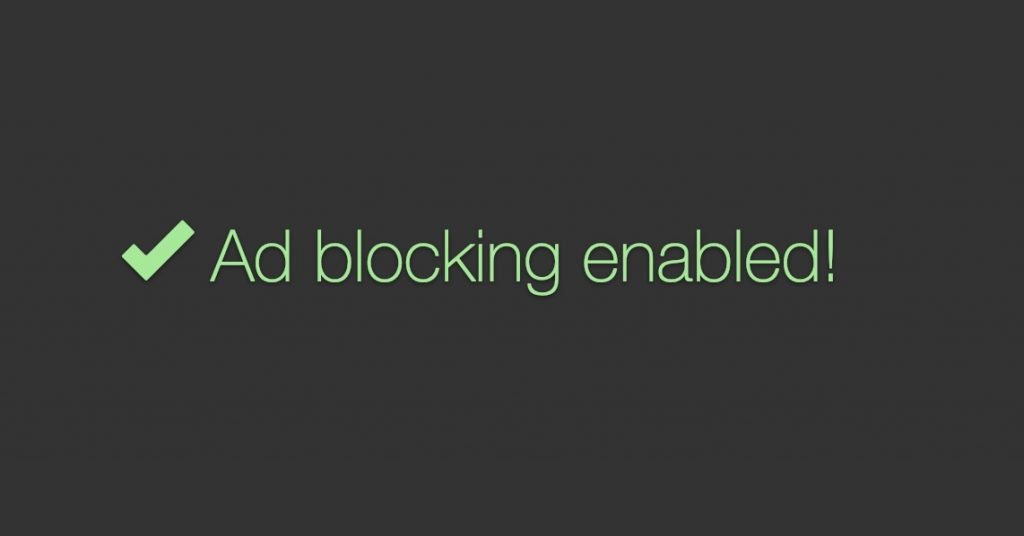
To test out if the ad blocker is working you can try this AdBlock test page. If it’s setup correctly it’ll say ad blocking enabled!
I hope this guide to ad blocking on your router was helpful! For more advanced users I would recommend setting up a Pi-Hole.
From the original discussion
nonW00t · 2020-03-13
Says only "partial" on that test page for me.
greg · 2023-03-16
test page says Ad Blocking Enabled, and I didn't do anything.